
This guide explains how Administrative Users (admins & Reps) can manage whether they receive email notifications when clients or collaborators upload files inside a client vault.
This setting applies to uploads made to company folders within the vault.
Before You Begin
Ensure you are logged into the Admin Portal (not the client view).
This setting controls your email notifications only.
Bell (in-app) notifications are not affected.
Step-by-Step Instructions
Step 1 — Access Account Settings
Access your Admin Portal.
Click your name in the top-right corner.
Select Account Settings.
Navigate to the Notifications tab.
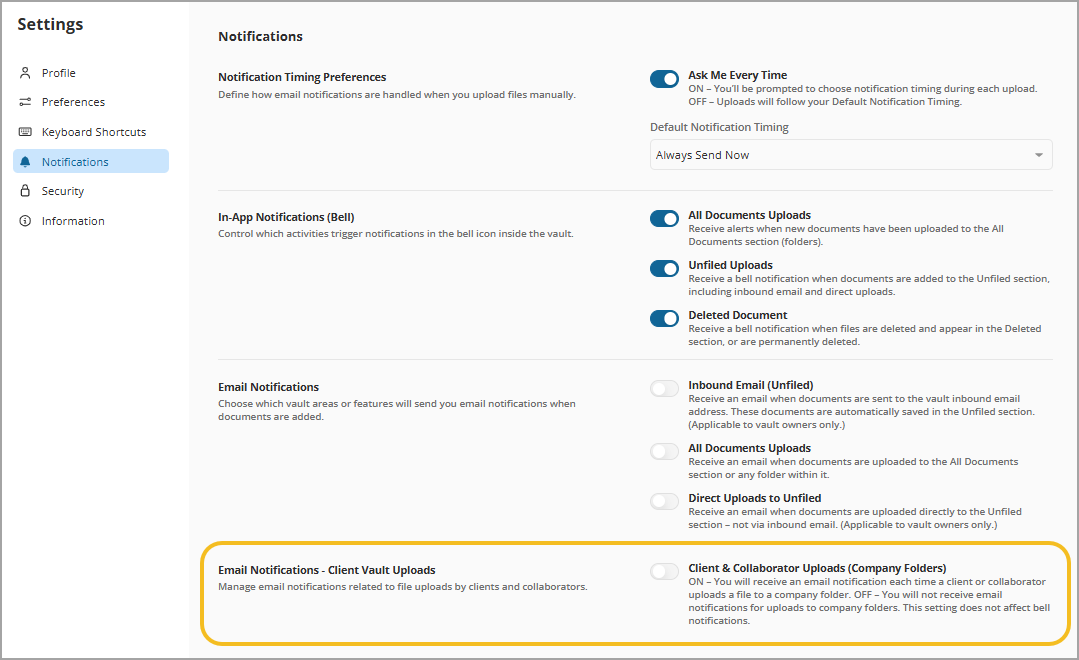
Step 2 — Configure Email Notifications
- Under the section Email Notifications – Client Vault Uploads
- Under: Client & Collaborator Uploads (Company Folders). Choose one option:
- ON - You will receive an email each time a client or collaborator uploads a file to a company folder.
- OFF - You will not receive email notifications for uploads to company folders.
This setting does not affect bell notifications.
Important Behaviour Notes
This setting applies only to uploads made by clients or collaborators.
Uploads performed by other Administrative Users do NOT trigger email notifications.
Turning this OFF does not disable in-app (bell) notifications.
If you have multiple roles, you may see other options available. For example, if you have access to a vault at the Head Office Level and also have an administrative user to sub-tier portal, then you will also find the vault Notification preference.
Special Case — File Upload Request Links
If you create a File Upload Request Link and enable email notifications for that request:
You will receive a notification when the upload is completed for that specific link
Even if your general Client & Collaborator Uploads (Company Folders) setting is OFF
Request-based notifications operate independently from the general upload setting.