
With your portal, you can choose whether to send the activation email when creating your clients' Vaults or after. Here are some instructions on how to do it.
- From your Client List
- From your Client Detail page
- In what status must the Vault be in to send the activation email?
- Recommendations
Please note that if your system currently has a Single Sign-On (SSO) integration enabled, you may skip this action since the status will depend on the integration. If the integration is not active yet, you may send the activation email to your client. Please ensure you used the same email address in the Vault as the one used in the integrated system.
From your Client List
Step 1.2: In your 'Client List', right-click on your client’s name or select multiple clients.
- Click on the Status header to use the filter.
- Select 'Created'.
- Select all.
- Click on 'Send Activation Email'.

Step 1.2: From the Actions menu, click on 'Send Activation Email'.
- Select the client.
- Click on the Actions button on the top right.
- Click 'Send Activation Email'.
 Step 2: Confirm this action
- Click 'Send' to confirm that you want to send the activation email to your client(s).

- The email will be sent to the email address set up when you created the Vault and will contain their login email, a temporary password, and the URL they should bookmark to access it next time. (see sample below)
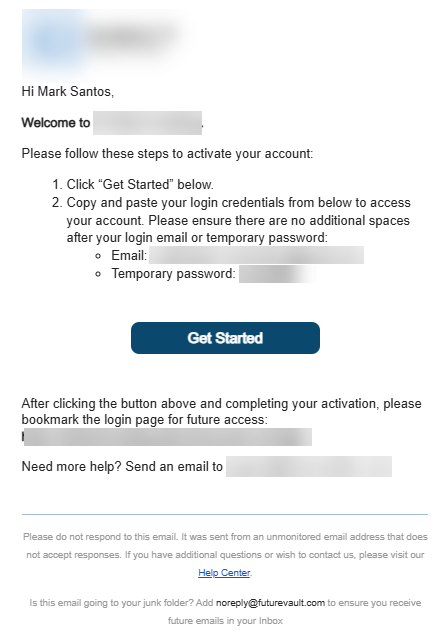
Once you send the activation email, the status of the Vault will change from "Created" to "Invited". If you noticed an error in the email, you will be able to edit the profile and resend the activation email while the Vault is on still on Invited status.
From your Client Detail page
Step 1: In your 'Client List', right-click on your client’s name.
Step 2: Select the option 'See Details' from the menu.

Step 3: In the details page, click on 'Actions' and select 'Send Activation Email'.

Step 4: Confirm this action.
- Click 'Send' to confirm that you want to send the activation email to your client.
- The email will be sent to the email set up when you created the Vault.

Once you send the activation email the status of the Vault will change from 'Created' to 'Invited'. If you noticed an error in the email, you can edit the profile and repeat the steps.
In what status must the Vault be in to send the activation email?
You can send an activation email when the Vault has any of these statuses and in these circumstances:
| STATUS | DESCRIPTION |
| Created | At any time, follow the steps above. |
| Invited | You send the activation email, but the user hasn't completed the account activation. |
| Active + No Last Login Date | The user clicked on the email but didn't set the new password or accept the terms and conditions. You will notice that, in this case, the user doesn't have a last login date recorded, but the status is Active. Learn more about activation errors.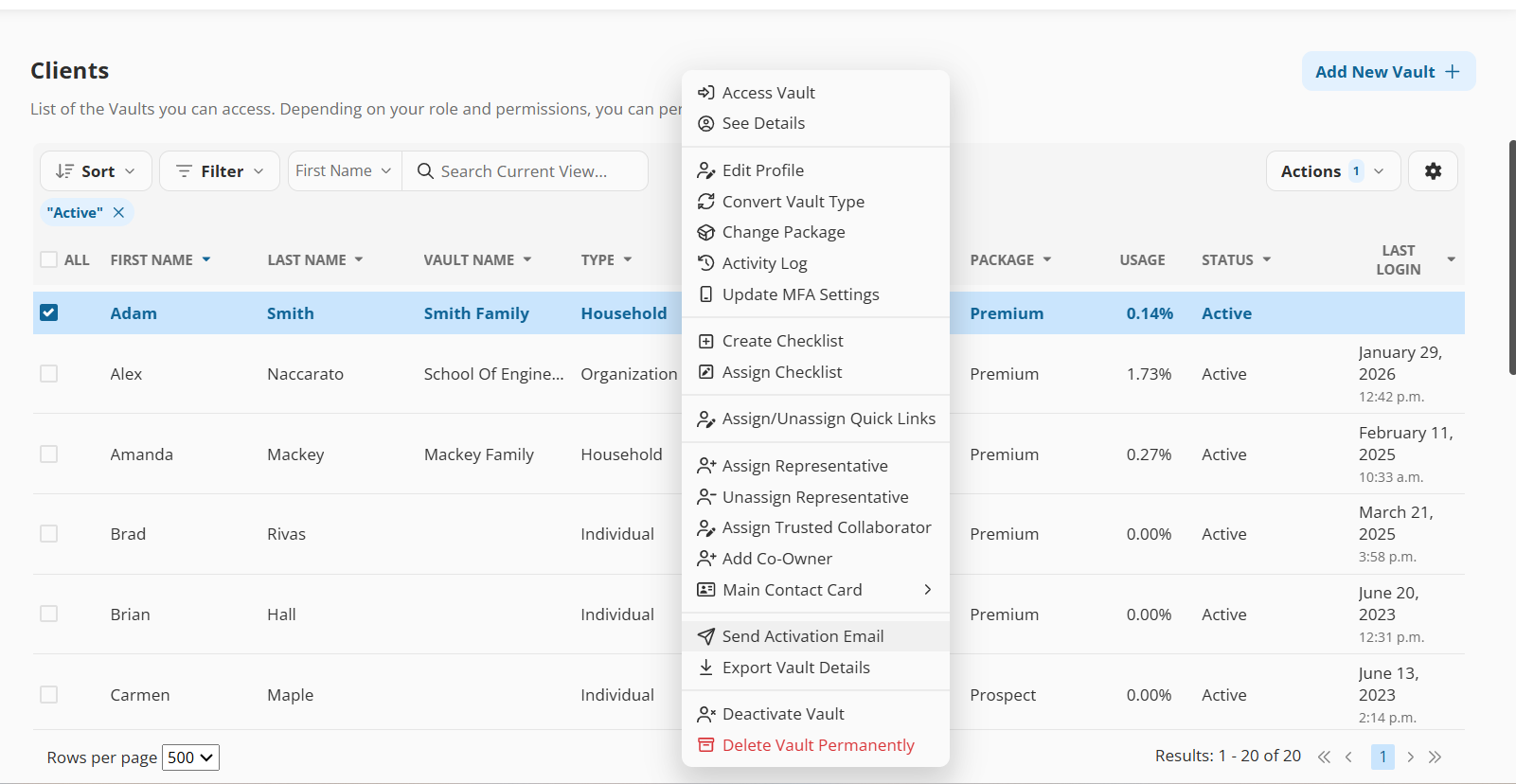 |
Recommendations
We always recommend calling or emailing before the system sends the activation email; that way, your client will expect it. If they don't find it in their inbox, ask them to check their Spam / Junk folder, and whitelist this email to be able to receive future emails like resetting passwords, notifications, etc.
Below is a template that you can use:
Hi [Client Name],
COMPANY NAME has teamed up with FutureVault to create PLATFORM NAME a Digital Vault that allows you to deposit, store and manage your important financial, legal, and personal documents in an encrypted private cloud. [Add here information about what type of documents or interaction your clients will find – example: In this portal, you will find a section related to all your investments (reports, statements, etc.)
There is an email headed to your inbox, and we don’t want you to miss it! Today, you will receive an email from FutureVault noreply@futurevault.com with the subject 'Platform name - Please activate your account.' If you do not see this email, you might want to check your 'Spam' or 'Junk' folders and move it to your Inbox to ensure you don’t miss any future emails.
Once you open the email, follow all the steps:
1. Click only one time to the button.
2. Copy and paste the credentials from the email, but make sure you do not include any additional spaces after the login email or temporary password.
To log in to this new platform, please go to [YOUR PLATFORM URL]. We recommend you to bookmark this page.
Your account included number [#] Entities and [#] GB of storage. To get you started, we are happy to schedule a meeting to help you navigate your PLATFORM NAME. Please feel free to contact us for any further information.
But wait! There’s more... To make sure you start off on the right foot, check out the Help Center page and Training Videos.
Enjoy your Vault!