
Admins and Representatives can manage email notification preferences on behalf of a Primary Vault Owner directly within the vault.
This allows you to control when the primary owner receives email alerts for:
- Documents received via inbound email
- File uploads across the vault
- Direct uploads to the Unfiled section
Before You Begin
- Ensure you have access to the vault
- Confirm the user is the Primary Owner (not a Co-Owner or Collaborator)
How to Update Email Notifications
Step 1: Locate the Vault
- Go to the Client / Vault List
- Search for the desired vault
- Access the vault by:
- Double-clicking the vault, or
- Right-click → Access Vault
Step 2: Open Account Settings
- Once inside the vault, confirm the vault name in the top bar
- Click the vault name (top-right corner)
- Select Account Settings
Step 3: Go to Notification Settings
- Navigate to the Notifications tab
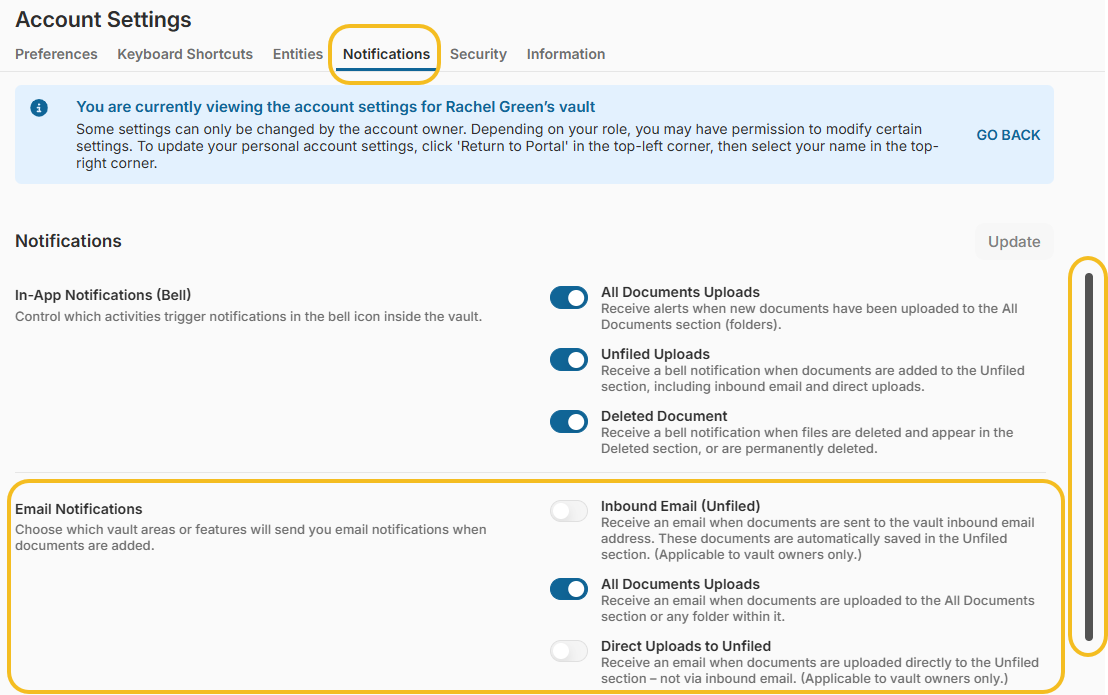
- Under Email Notifications, you will see a message:
“You are currently viewing the account settings for [Vault Owner Name]’s vault.
Some settings can only be changed by the account owner. Depending on your role, you may have permission to modify certain settings.
To update your personal account settings, click ‘Return to Portal’…”
This confirms you are editing the Primary Owner’s settings, not your own as a user.
Step 4: Configure Email Notifications
You will see the following options:
1. Inbound Email (Unfiled)
Receive an email when documents are sent to the vault’s inbound email address. Files are automatically saved in Unfiled.
2. All Documents Uploads
Receive an email when documents are uploaded anywhere in:
- All Documents
- Any folder within the vault (Company and Personal folders)
3. Direct Uploads to Unfiled
Receive an email when documents are uploaded directly to Unfiled (not via inbound email)
Step 5: Enable or Disable Notifications
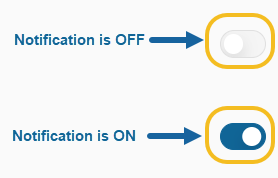
- Gray toggle → Notifications are OFF
- Blue toggle → Notifications are ON
To make changes:
- Click the toggle to turn it ON (blue) or OFF (gray)
- Click Update to save changes
- The Update button turns blue when changes are made

Important Notes
- Changes apply only to the Primary Owner
- You must click Update after making changes, or they will not be saved
- This process does not impact your personal notification settings
- These steps don't apply to managing notifications for Co-Owners & Collaborators. (These users must manage their own notification preferences)