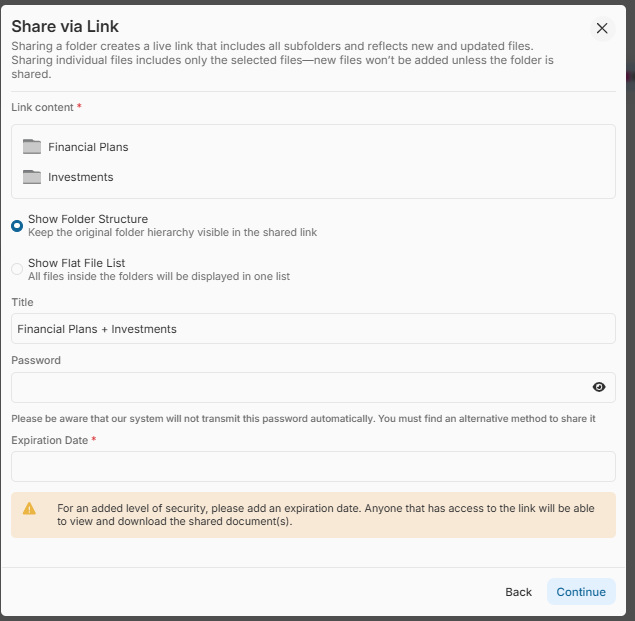
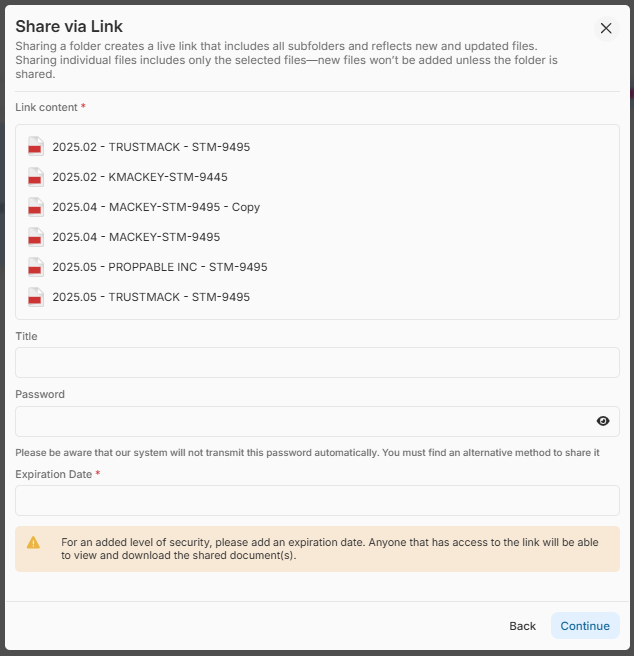
This is a Step-by-Step Guide to Sharing Files with Secure Links. This tool allows you to create an encrypted link that can be shared directly via your preferred communication method. With built-in security options such as password protection and expiration dates, you maintain full control over who can access your documents.
Anyone with the link can access the shared files without needing a system account. If the recipient does have an account, they can still access the files using the shared link, but need to add their full name and email. However, if the link is password-protected, they must enter the password set specifically for the link — not their personal account password — in order to gain access.
This guide explains how to securely share files or folders using encrypted sharing links in FutureVault. You can share:
- Individual files
- Multiple selected files
- Entire folders and subfolders
Secure Links allow you to share content externally without requiring the recipient to have a FutureVault account. When sharing folders, you can now create a live dynamic link that automatically reflects:
- Newly added files
- Updated files
- Newly added subfolders
You can also choose how recipients view the shared content:
- Original folder structure
- Flat file list
Important:
- If you share an entire folder, future content updates are automatically included in the link.
- If you share only selected files, the link remains static, and no additional files will be added automatically.
Benefits of Using Secure File Sharing Links
- Simple & Efficient – Share multiple files or entire folders using a single secure link.
- Dynamic Folder Sharing – Share a full folder structure that automatically updates when new files or folders are added.
- Flexible Display Options – Choose whether recipients see the original folder structure or a flat list of files.
- Enhanced Security – Protect access with passwords and expiration dates.
- Complete Control – Manage, edit, or revoke access at any time.
- Compliance & Tracking – Track access activity with logged auditing details.
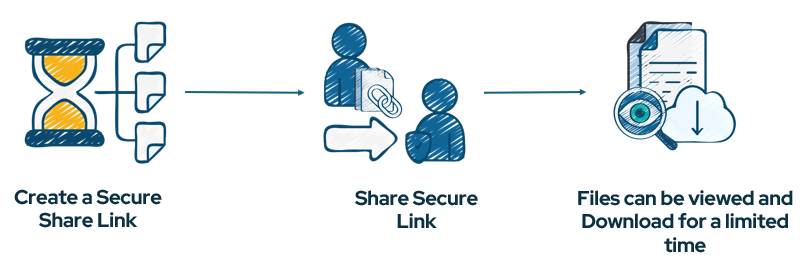
Step-by-Step Guide:
You can create secure links in two different ways:
- Option 1 – Sharing Folder(s)
- Option 2 – Sharing Individual File(s)
- How to Manage and Edit a Shared Link
- How Recipients Access Shared Content