
This is a Step-by-Step Guide to Sharing Files with Secure Links. This tool allows you to create an encrypted link that can be shared directly via your preferred communication method. With built-in security options like password protection and expiration dates, you maintain full control over who accesses your documents.
Anyone with the link can access the shared files without needing an account in the system. If the recipient does have an account, they can still access the files using the shared link but need to add their full name and email. However, if the link is password-protected, they must enter the password set specifically for the link — not their personal account password — in order to gain access.
Benefits of Using Secure File Sharing Links
Simple & Efficient – Share multiple files with a single link.
Enhanced Security – Protect access with passwords and expiration dates.
Complete Control – Manage, edit, or revoke access at any time.
Compliance & Tracking – Keep track of file access with logged actions.
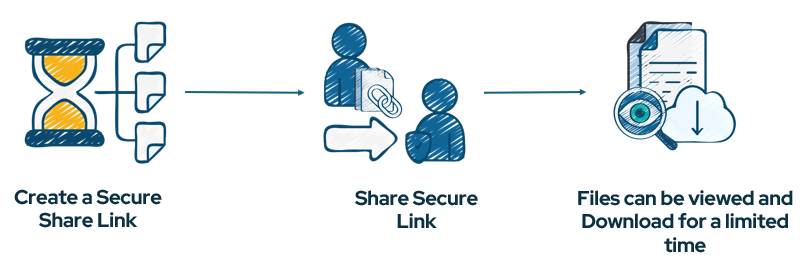
Step-by-Step Guide:
- How to Create a Secure File Sharing Link
- How to Manage and Edit a Shared Link
- Editing a Secure Link
- Copying the Link Again
- Deleting a Secure Link
- How Recipients Access Shared Files
Create a Secure File Sharing Link
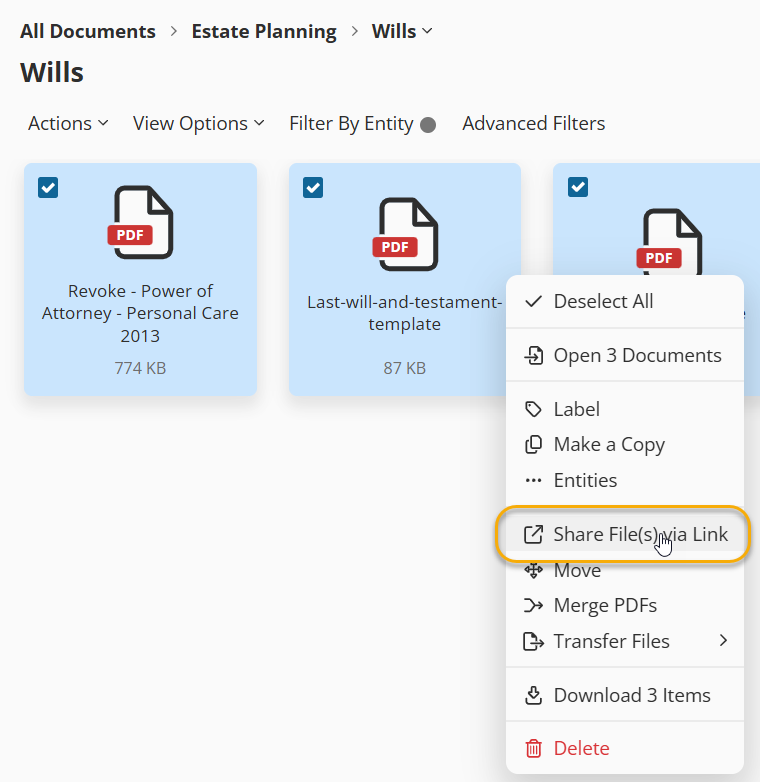
Select Files or the Folder to Share
Navigate to your client's vault and select multiple folders or individual files.
Right-click and choose Share Files via Link from the Actions menu.
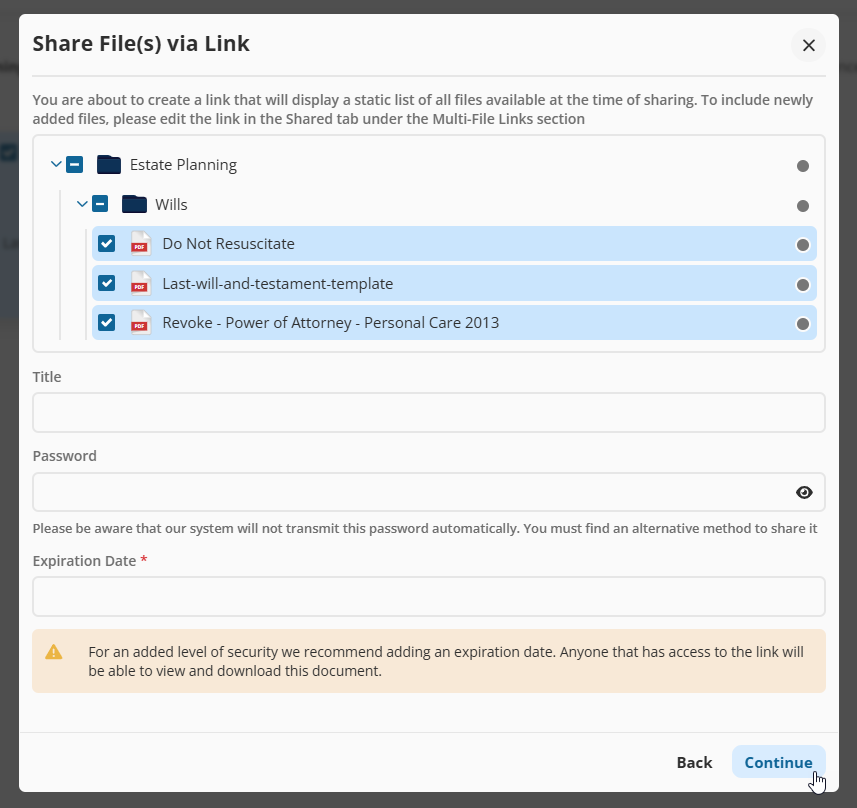
Set Up the Link
Add a title for internal tracking only. This name helps you locate the link later in the Shared tab and is not visible to recipients.
Enter a password (mandatory depending on your portal configuration). Remember to share the password through a separate channel with the recipient for security purposes.
Set the expiration date and time for the link (mandatory depending on your portal settings):
Use the calendar to pick a date.
Use the single arrows to move between months.
Use the double arrows to move between years.
Click the clock icon to select the exact time the link will deactivate.
Click Continue to generate the link.
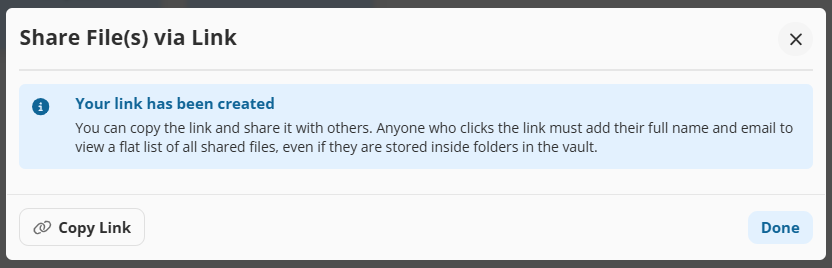
Copy & Share the Link
Once created, copy the link and share it through your preferred email or messaging service.
Important: The system does not transmit the password automatically. You must share it separately.
Accessing Shared Files
Recipients will need to enter their name and email before accessing the files.
The files will be displayed as a flat list, even if they were originally stored in folders.
How to Manage and Edit a Shared Link
Editing a Secure Link
Go to the Shared tab in your vault.
Locate the link under Multi-Files Link.
Click Edit to add or remove files.
Changes are applied automatically—recipients will always see the latest file selections.
Copying the Link Again
Navigate to the Shared tab.
Find the existing link and click Copy.
Paste and resend as needed.
Deleting a Secure Link
In the Shared tab, locate the link you want to remove.
Click Delete to revoke access immediately.
How Recipients Access Shared Files
Click the shared link.
Enter First Name, Last Name, and Email (this is required for auditing purposes; no account is needed).
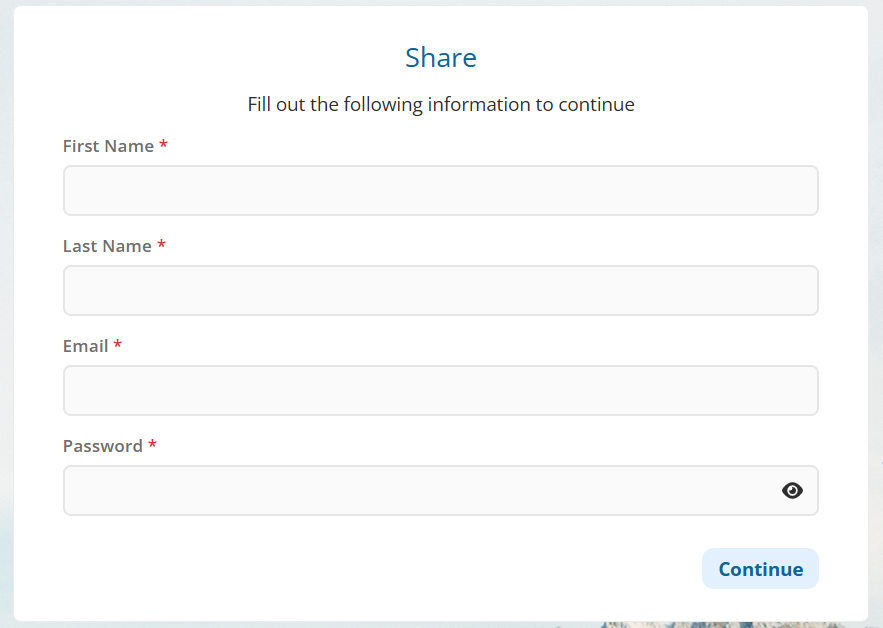
If the link has a password, enter it.
The shared files will be displayed as a flat list.
Opening and Downloading Files:
Double-click a file to preview it, or click Open Document under the Actions menu.
Use the Actions button to download the file in its original format (Word, Excel, etc.).
If using the download option under the Adobe preview image viewer, the file will be saved in PDF format.
Click Documents at the top to return to the file list.
If new files are added and the link is already open, close and reopen it to refresh the view.