
Quick Links allow organizations to provide vault owners with quick access to external websites directly from their FutureVault.
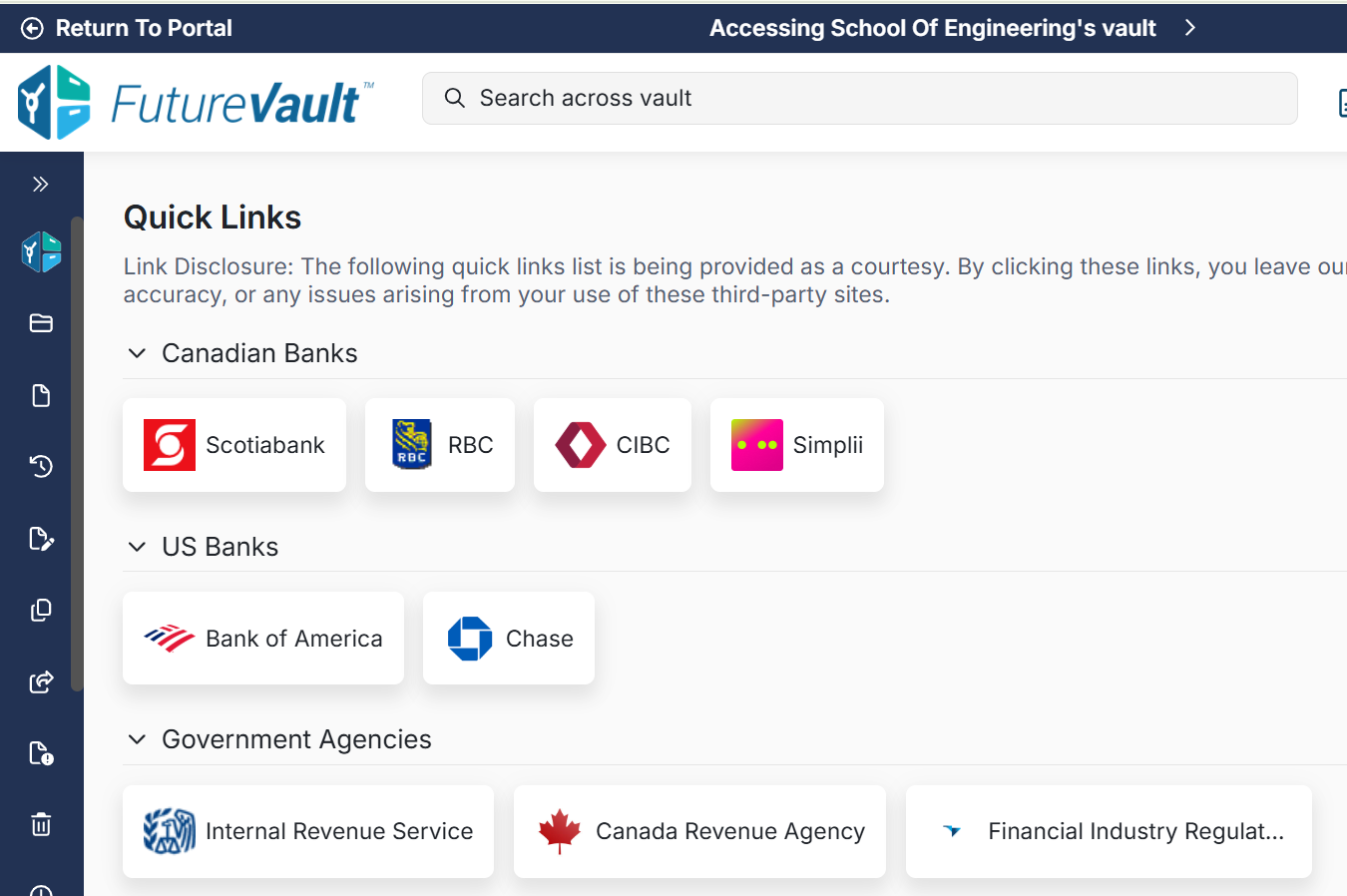
Rather than asking clients to bookmark multiple websites, advisors can make the vault a central hub where clients can securely access commonly used portals, such as:
- Banking websites
- Investment platforms
- Insurance portals
- Tax software
- Client portals
- Company websites
- Other third-party services
When a client selects a Quick Link, they are redirected to the external website in a new browser tab.
Quick Links are managed centrally by administrators using reusable templates that can be assigned to one or many vaults.
Availability
- Available for supported portal configurations.
- The Quick Links tab name can be customized upon request by contacting your Customer Success team.
- The optional Dashboard Quick Links view is available upon request.
Benefits
- Centralize access to external websites from within the vault.
- Improve the client experience by reducing the need for browser bookmarks.
- Reuse Quick Links templates across multiple vaults.
- Organize links into logical sections such as Banking, Investments, Insurance, or Tax Resources.
- Update links centrally and assign them to many vaults.
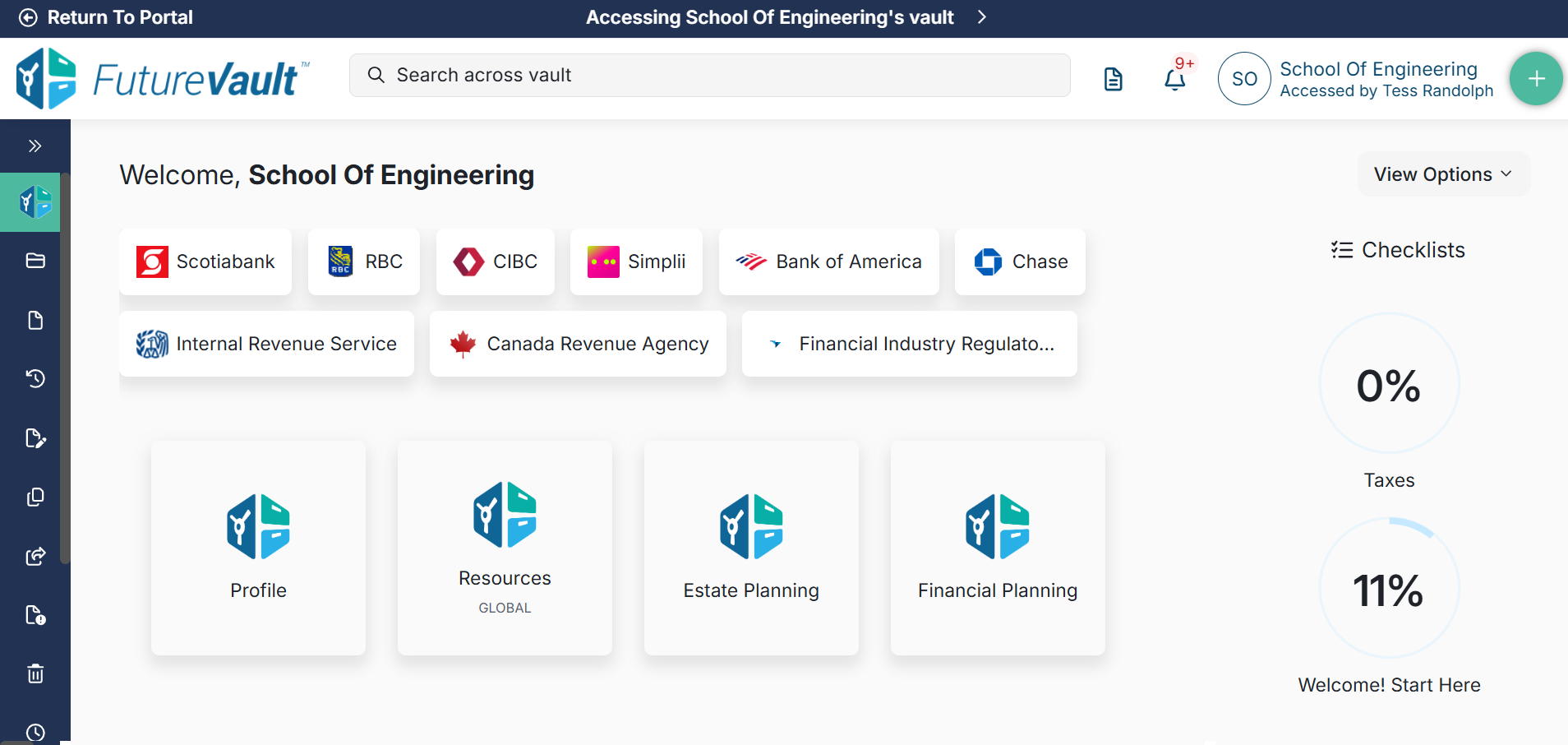
- Optionally display Quick Links on the vault Dashboard, creating a single hub for both documents and external services.
Permissions / Access
User Permissions
Access to Quick Links is controlled through user permissions.
Depending on their responsibilities, users may require one of the following permission flags:
- Can Manage Quick Link Templates – Allows users to create, edit, delete, assign, and unassign Quick Links templates.
- Can Assign Quick Link Templates – Allows users to assign or unassign existing Quick Links templates to vaults without modifying the templates themselves.
Vault Access
Quick Links become available within a vault after one or more 'Quick Links' templates have been assigned to a vault.
- A vault can have one or multiple Quick Links templates assigned.
- Once assigned, a Quick Links tab will appear in the vault.
- All users with access to the vault (including the vault owner, collaborators, co-owners, trusted contacts, and administrative users, based on their existing vault permissions) will be able to view and use the Quick Links tab.
- Selecting a Quick Link opens the configured external website in a new browser tab.
Note: If no Quick Links templates are assigned to a vault, the Quick Links tab will not be displayed.
This makes it clear who sees the feature, when it appears, and how multiple templates behave, which are common questions administrators have.
Configuration
Quick Links are configured using reusable templates.
Each template can contain:
- Multiple sections (groups)
- Multiple links within each section
- Custom icons or website favicons
- A live preview before saving
Once created, templates can be assigned to one or many client vaults.
When the optional Dashboard experience is enabled, all assigned Quick Links are displayed in a single horizontal row, regardless of the original grouping defined in the template.