
Roles: Administrator, Representative | Portal Type: 2-Tier, 3-Tier | Availability: Enabled by default (or Contact Customer Success to enable)
Overview
Quick Links permissions determine which administrative users can create, manage, and assign Quick Links templates.
Depending on a user's responsibilities, administrators can grant full management access or limit access to assigning existing templates to client vaults.
Prerequisites
Before granting permissions:
- You must be an administrator with permission to manage users.
- The user account must already exist in the portal.
Steps
- Log in to the Admin Portal.
- Navigate to Users.
- Select the user you want to update.
- Click Edit User.
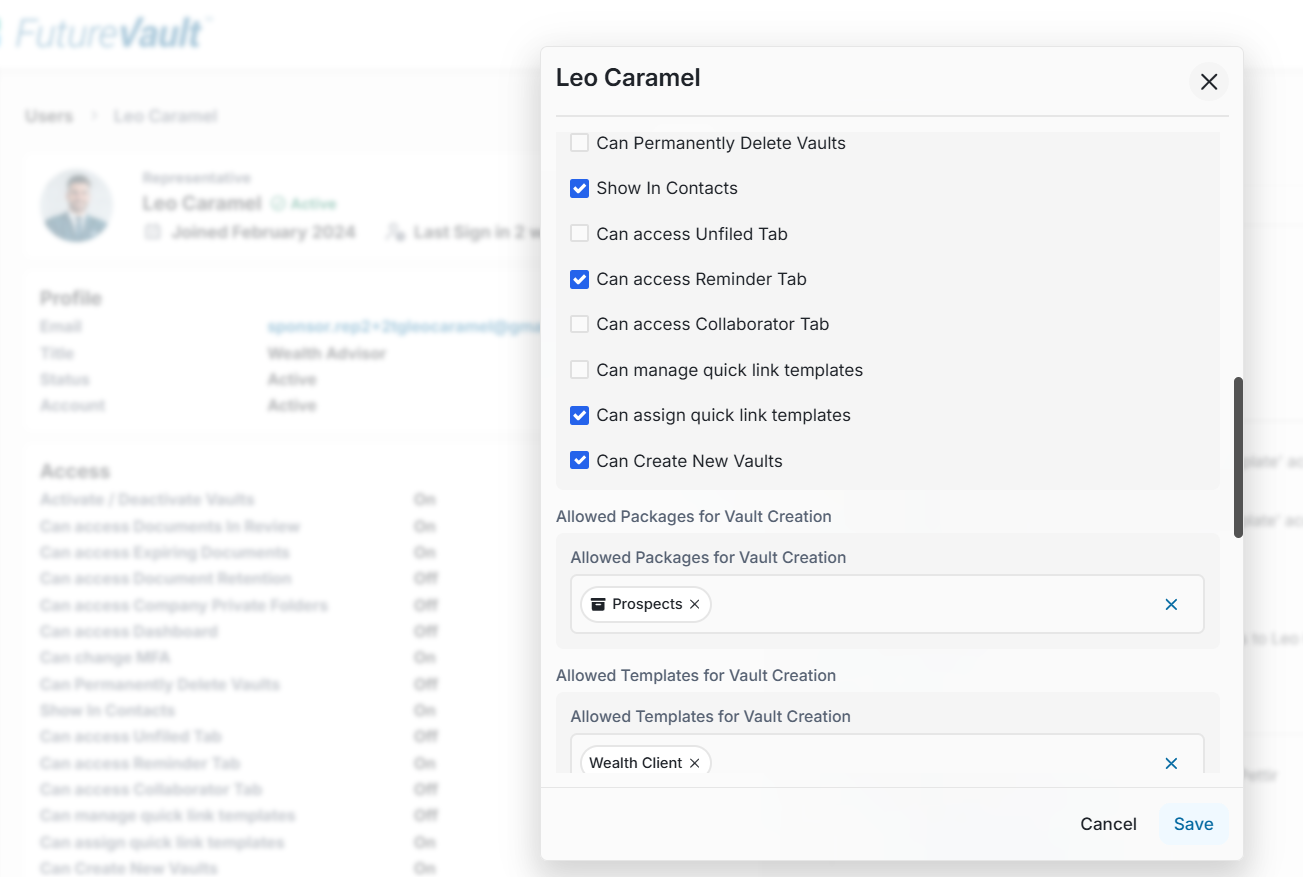
- Under Access, locate the Permission Flags section.
- Enable one of the following permissions:
- Can Manage Quick Link Templates – Allows the user to create, edit, delete, assign, and unassign Quick Links templates. This permission automatically includes the ability to assign and unassign Quick Links templates to vaults.
- Can Assign Quick Link Templates – Allows the user to assign or unassign existing Quick Links templates to vaults only. Users with this permission cannot create, edit, or delete Quick Links templates.
- Click Save to apply the changes.
Permission Comparison
| Permission | Create & Edit Templates | Delete Templates | Assign Templates | Unassign Templates |
|---|---|---|---|---|
| Can Manage Quick Link Templates | ✓ | ✓ | ✓ (included) | ✓ (included) |
| Can Assign Quick Link Templates | ✗ | ✗ | ✓ | ✓ |
Result
The user's permissions are updated immediately.
Depending on the permission granted, they will be able to:
- Access Template Management > Quick Links to create and manage templates.
- Assign or unassign Quick Links templates to client vaults.
- View only the Quick Links functions permitted by their assigned role.