
Overview
Quick Links templates allow users with permission to organize external websites into reusable collections that can be assigned to one or multiple client vaults.
Each template can contain one or more sections, with multiple links in each section. Once created, templates can be assigned to any number of vaults, providing clients with quick access to frequently used external websites.
Prerequisites
Before creating a Quick Links template, ensure:
- Your account has the Can Manage Quick Link Templates permission.
- You have the website names and URLs you want to include.
- You have a custom icon for the link.
Steps
Create a New Template
- Log in to the Admin Portal.
- Navigate to Template Management.
- Select Quick Links.
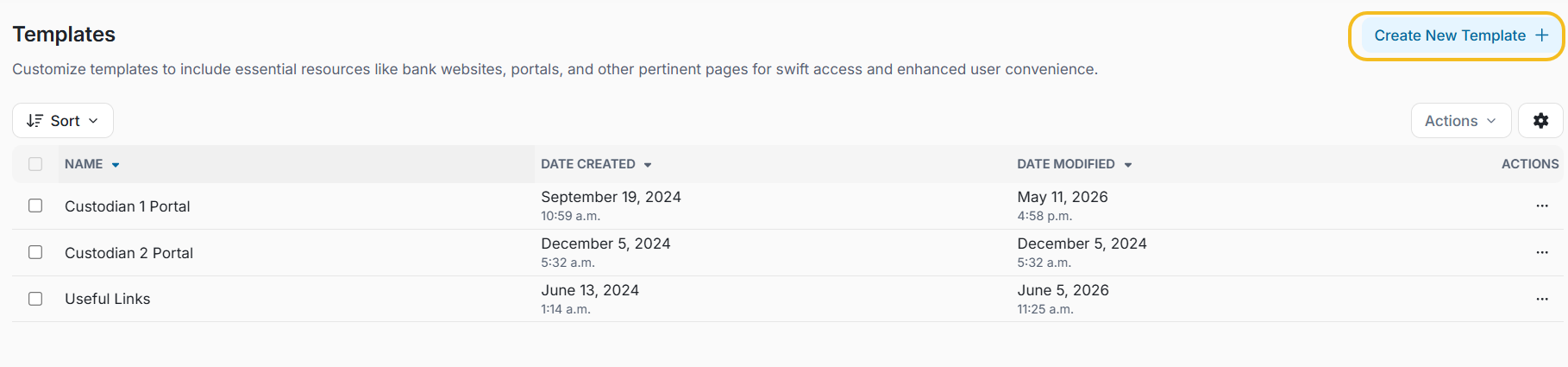
- In the top right-corner, click Create New Template.
Complete the Template Information
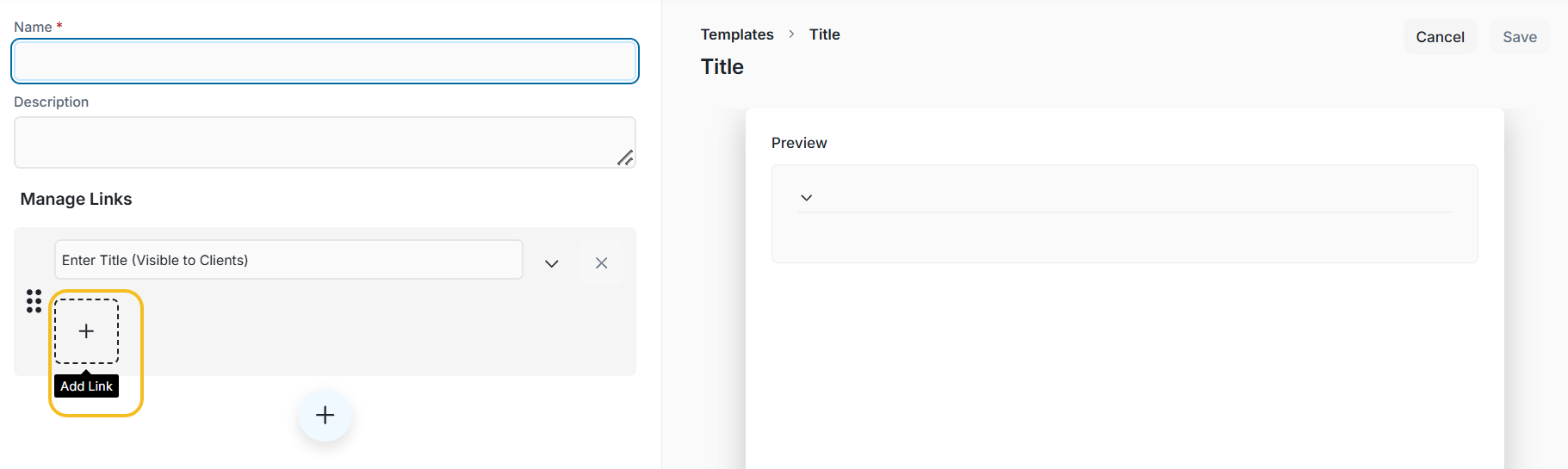
Enter a Template Name.
This name is for internal use only and helps administrators identify the template.
- (Optional) Enter a Description to help other users understand the purpose of the template.
Add a Section
Under Manage Links, enter a Section Name.
Examples include:
- Banking
- Investments
- Insurance
- Tax Resources
Add Links
- Click the + icon inside the dotted square.
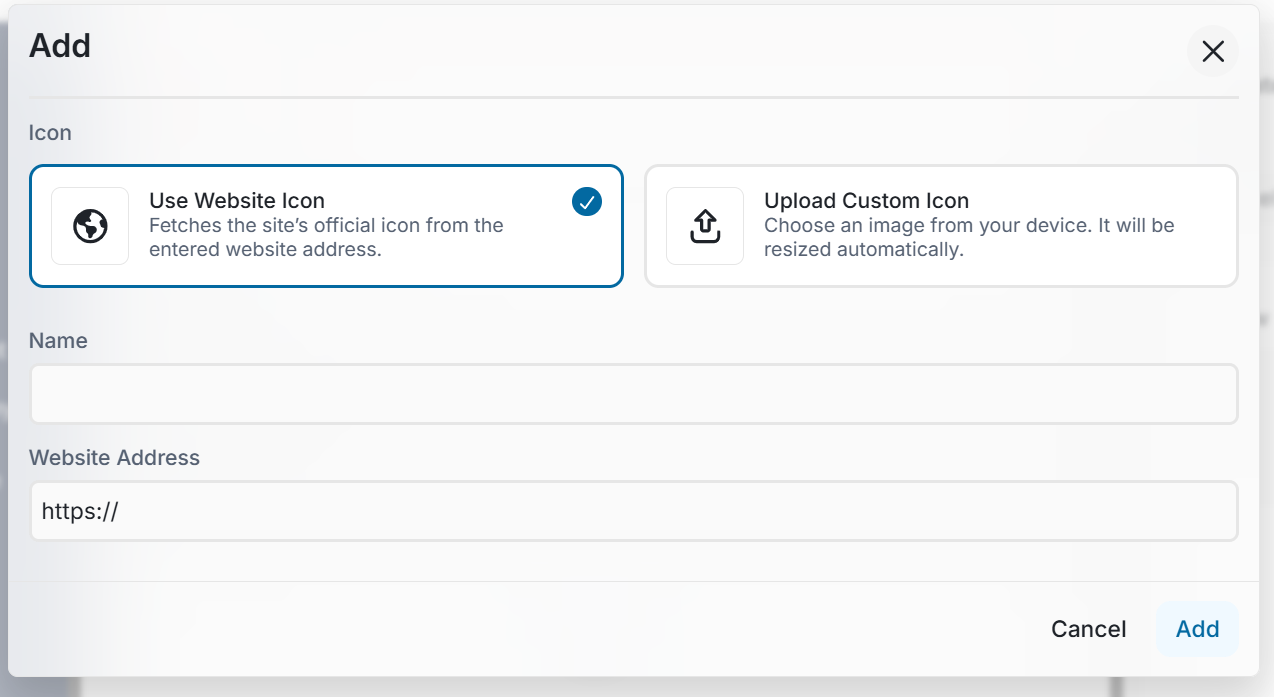
- Configure the link:
- Icon
- Upload a custom icon, or
- Use the website's favicon.
Note: Some websites do not expose a compatible favicon. If this occurs, upload a custom icon instead.
- Name
- Enter the name clients will see.
- Website Address
- Enter the complete website URL (including https://).
- Click Add.
Repeat these steps for each additional link you want to include in the section.
Add Additional Sections
- To create another section, click the + button below the current section.
- Repeat the previous steps until your template is complete.
Preview and Save
- Review the live preview displayed on the right side of the page.
- Click Save.
Result
Your Quick Links template is now available for assignment to one or more client vaults.
Templates remain available until they are deleted and can be assigned to multiple vaults at any time.
Best Practices
- Group related websites into logical sections.
- Use descriptive names that clients can easily recognize.
- Upload custom icons for a consistent appearance.
- Verify all URLs before saving the template.
- Reuse templates whenever possible instead of creating duplicates.
- Periodically review templates to ensure links remain current.