
Roles: Administrator, Representative | Portal Type: 2-Tier, 3-Tier | Availability: Enabled by default (or Contact Customer Success to enable)
Overview
After creating a Quick Links template, you can assign it to one or more client vaults.
A vault can have multiple Quick Links templates assigned, allowing administrators to combine different groups of external websites based on their clients' needs.
Once assigned, the Quick Links tab becomes available to all users with access to the vault.
Prerequisites
Before assigning a Quick Links template:
- You have either the Can Manage Quick Link Templates or Can Assign Quick Link Templates permission.
- At least one Quick Links template has been created.
- The client vault(s) already exist.
Methods to Assign Quick Links
Quick Links templates can be assigned using either of the following methods:
- From the Quick Links template page.
- From the Client List using bulk actions.
Steps
Option 1 – Assign from the Quick Links Page
- Log in to the Admin Portal.
- Navigate to Template Management > Quick Links.
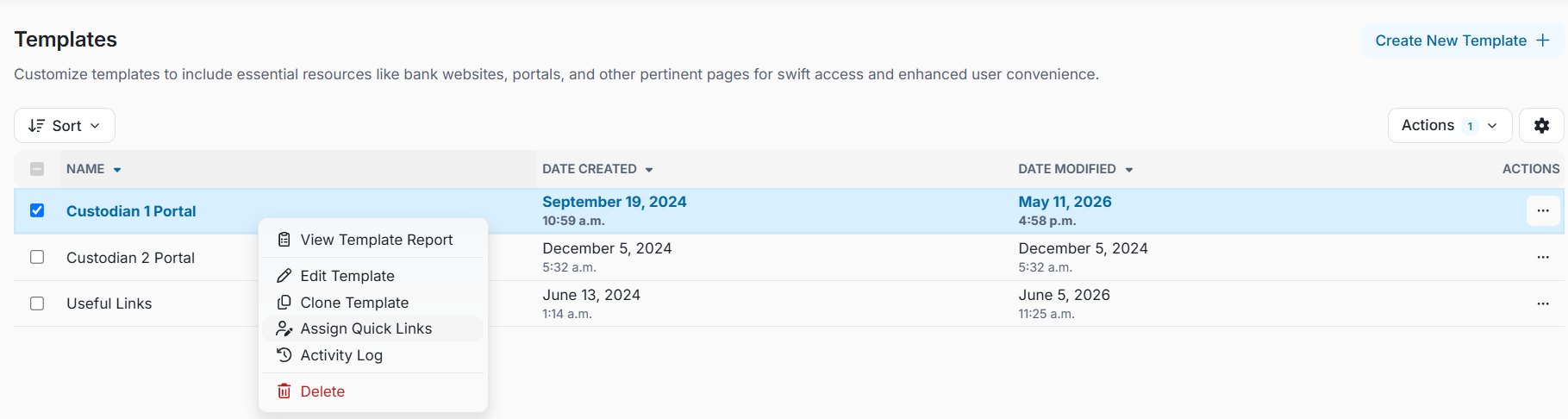
- Select the Quick Links template you want to assign.
- Click Assign Quick Links.
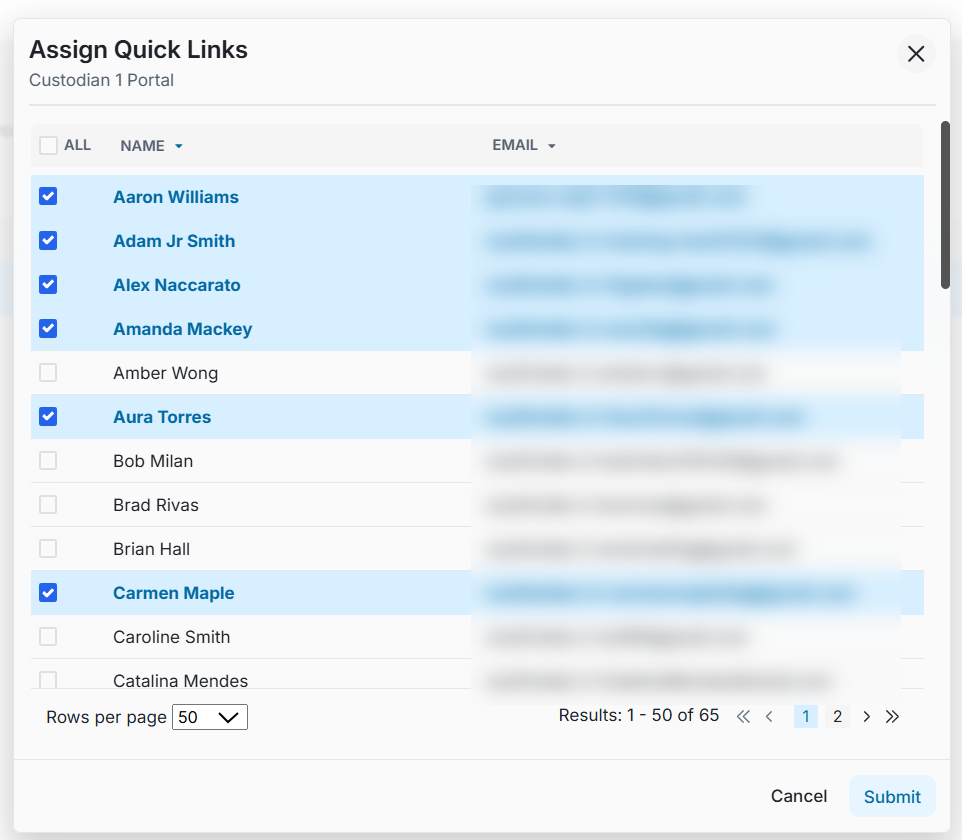
- Select one or more client vaults.
- Click Submit to confirm.
Option 2 – Assign from the Client List
- Log in to the Admin Portal.
- Navigate to Clients.
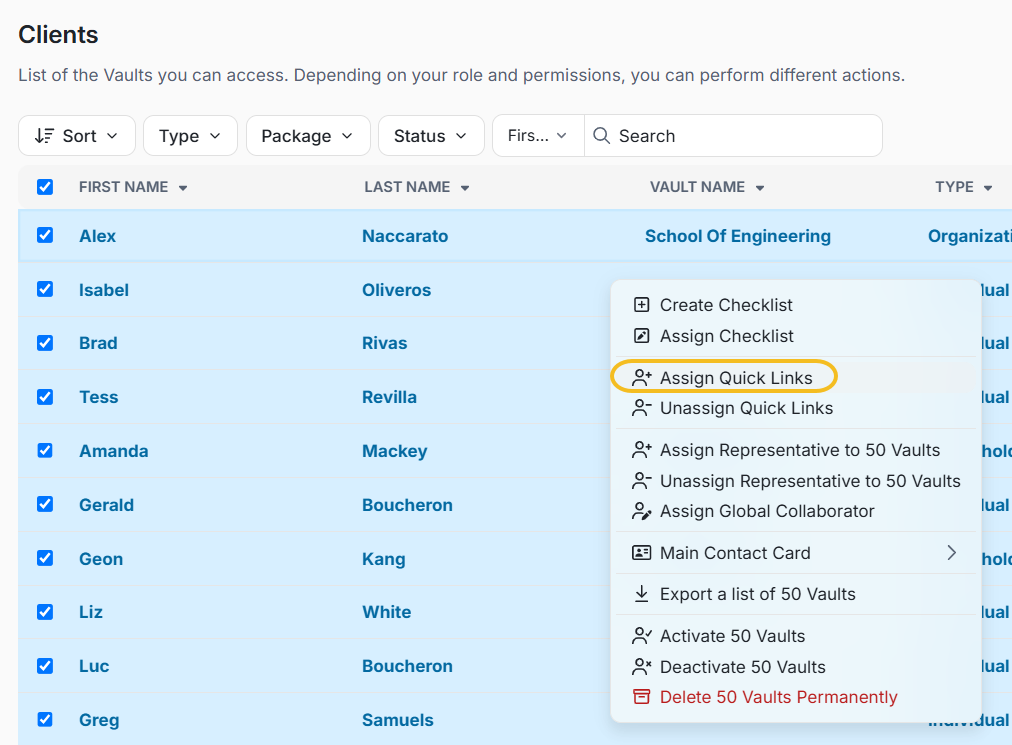
- Select one or multiple client vaults.
- Right-click the selected vault(s).
- From the Actions menu, select Assign Quick Links.
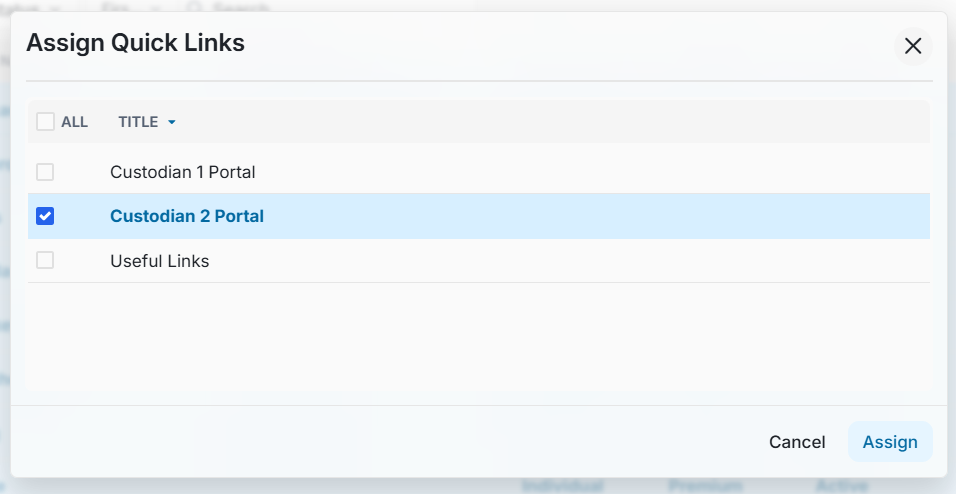
- Select one or more Quick Links templates.
- Click Assign.
Result
The selected Quick Links template(s) are immediately assigned to the selected vault(s).
Once assigned:
- A Quick Links tab appears in each vault.
- All users with access to the vault can view and use the assigned Quick Links.
- If multiple templates are assigned, all configured sections and links will be displayed within the Quick Links tab.
Best Practices
- Reuse existing templates whenever possible instead of creating duplicates.
- Assign templates in bulk when multiple clients require the same external resources.
- Review assigned templates periodically to ensure they remain relevant.
- Open a vault after assigning templates to verify the Quick Links appear as expected.