
Roles: Administrator | Portal Type: 2-Tier, 3-Tier | Availability: Enabled by default
Your vault template controls the default folder structure that appears across your vaults. Adding new folders — such as a new sub-category under an existing category, or a new year folder for annual documents — lets you keep every vault consistent without having to update each one manually. Follow these steps to add a folder to your template and push that update out to your existing and future vaults.
Steps to Add a Folder to Your Template
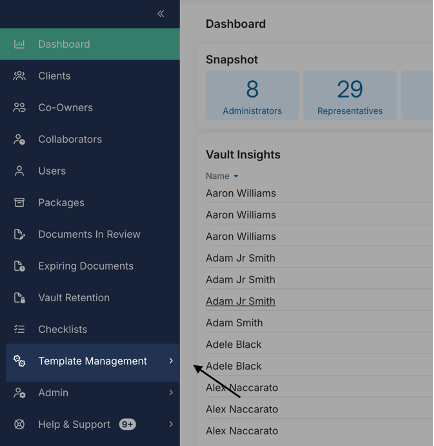
Step 1: Open Template Management
- From your Admin Portal, click Template Management in the main menu.
Step 2: Create the New Folder
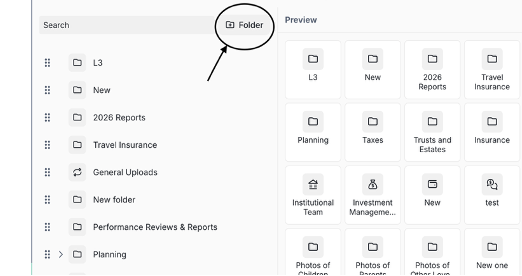
- Select 01 Custom Company Folders, then click the new Folder icon.
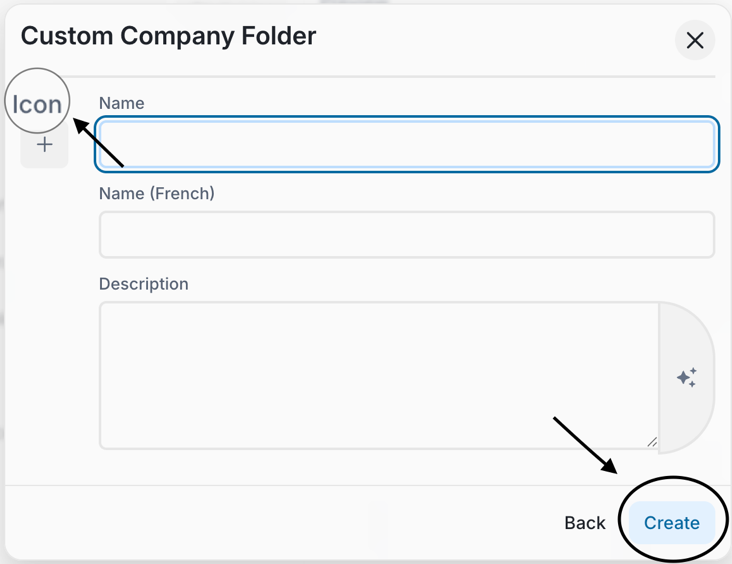
- Enter the folder name, choose the appropriate icon, and click Create.
- You can add the French name here that will be used by the system when users switch languages.
- If your portal has AI enabled, you can add a description to the folder to describe what type of folder will be located here in the future. This will help with the Auto-Suggestions.
Step 3: Position the Folder
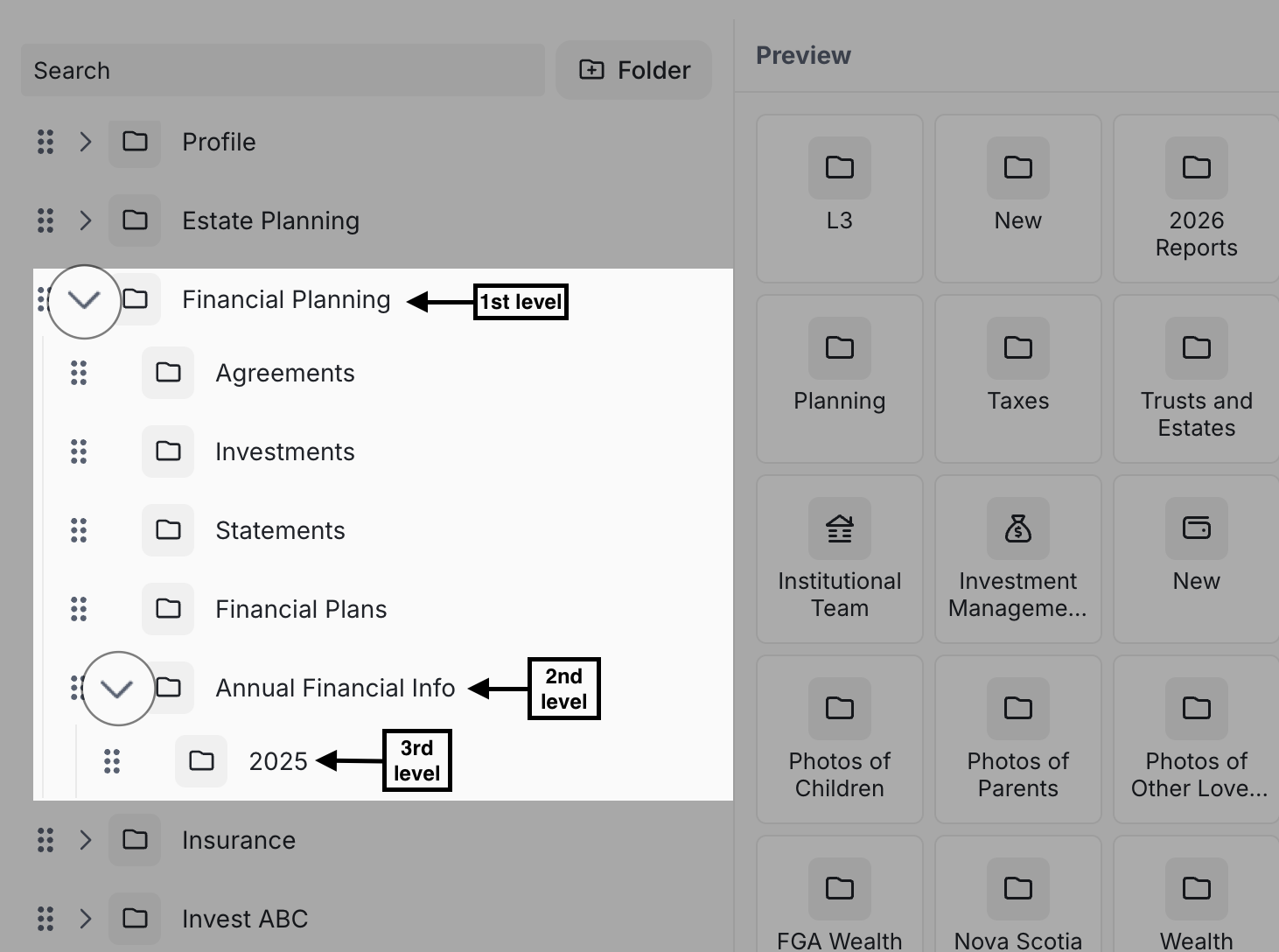
- The new folder appears at the bottom of the folder list. Drag it into the desired location — for example, under a Level 2 folder.
- Add Additional Sub-Folders (Optional)
- Repeat the steps above to create any additional, deeper-level folders. For example, create a third-level folder (such as a specific year) and drag it under the parent folder you just placed.
Step 4: Save the Folder Structure Template
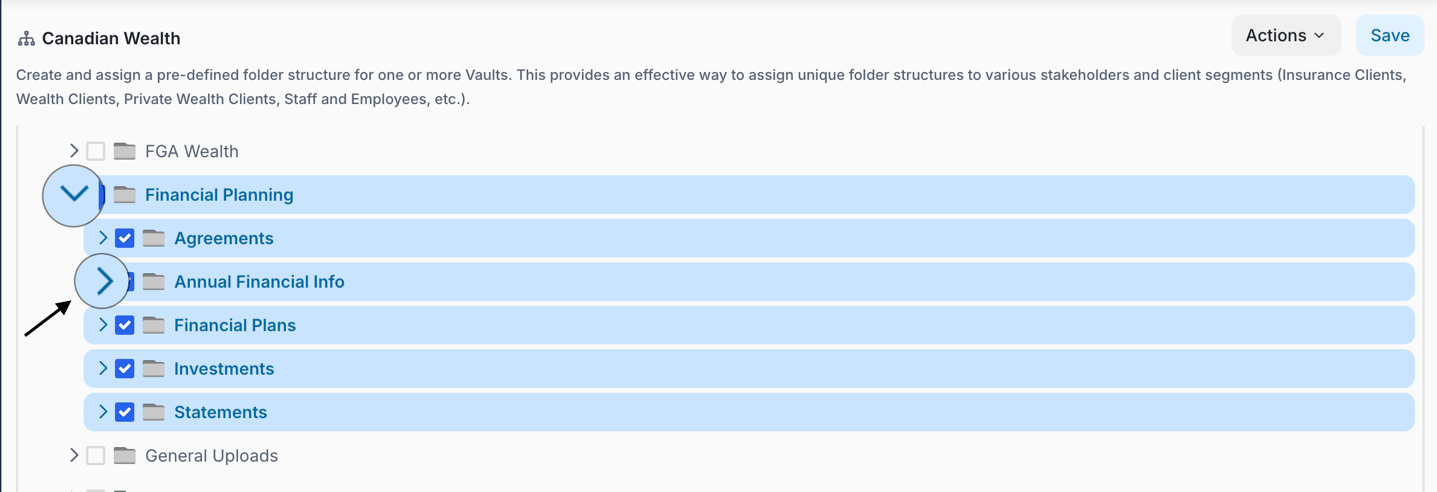
- Go to 02 Folder Structure Templates under Template Management, select all applicable folders, and click Save.
- Click the arrows to expand
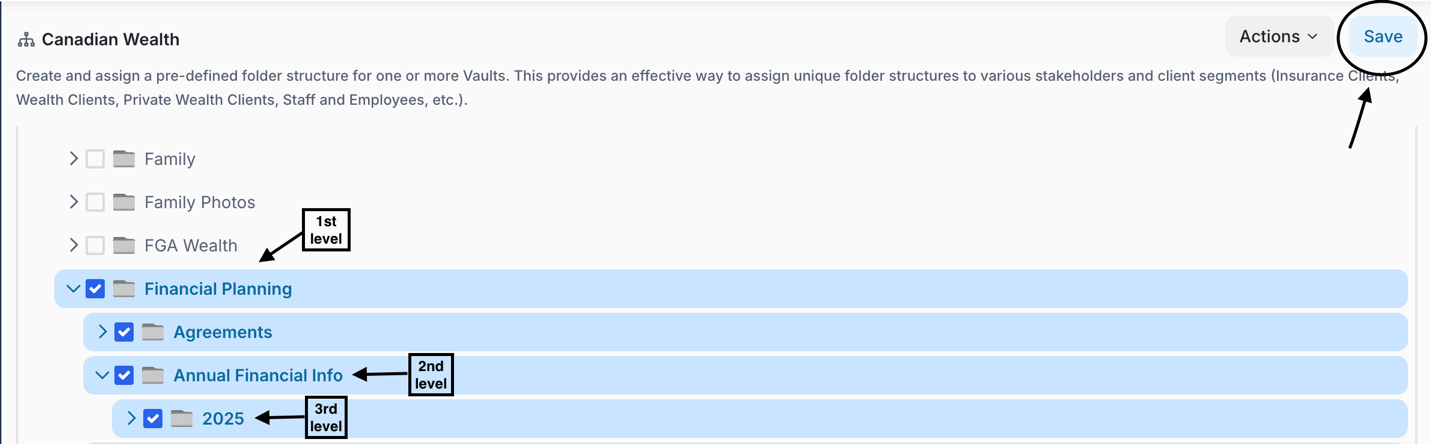
Note: After Saving, this will automatically update the folder structure for all existing (respected) vaults and all future vaults created from this template.
Tips for Managing Template Folders
- Use clear, consistent folder names and icons so the structure stays easy to navigate as it grows.
- Double-check placement under the correct parent folder before saving — nesting determines where documents will be filed.
- Remember to complete Step 4 (saving in Folder Structure Templates) — folders created in Step 2 won't roll out to vaults until the template is saved.
- Recurring folders (like a new year) currently need to be added each time manually; there is no automatic yearly folder creation at this time.