Roles: Administrator | Portal Type: 2-Tier, 3-Tier | Availability: Enabled by default
Template management is a great tool to define a pool of Level 1, Level 2 and Level 3 folder groups, and then create multiple standardized folder Templates out of those folder groups. These Taxonomy Templates can be designed to target different client segments and assigned when creating new Vaults.
How to Create Custom Folders
- Under 'Template Management', click on '01 Custom Company Folders'.
- Click on the '+ Folder' icon to the right of the search bar.
- From there, you can name the folder, describe it, and add a desired icon before pressing 'Create'.
- Ensure you click 'Save' (top right corner) before proceeding to the next step.
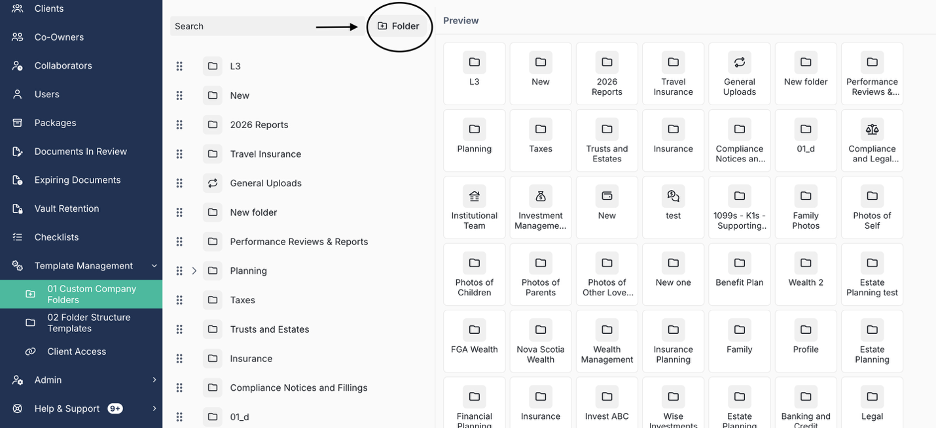
Note: You will be able to arrange them from level 1, level 2, and level 3 in the folder list. (Click and drag to the desired location).
Create Folder Structure Templates
You are in control of your templates! Now you can have a different folder structure for new Vaults. In this section you can create a new folder taxonomy with the new folders you already created and organized on the '01 Custom Company Folders' section.
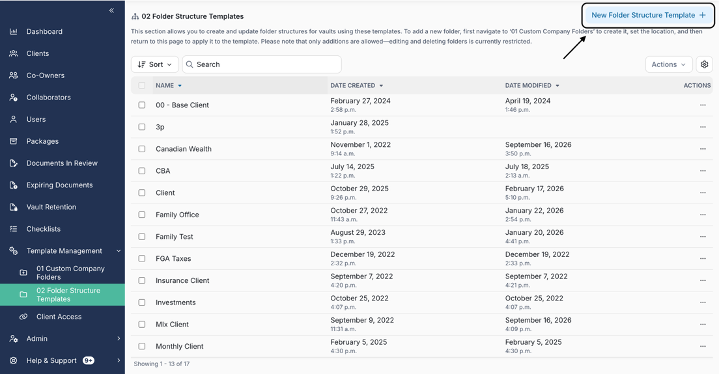
- Under '02 Folder Structure Templates', click on 'New Folder Structure Template' icon on the top right of the page.
- Name the template accordingly and press 'Create'.
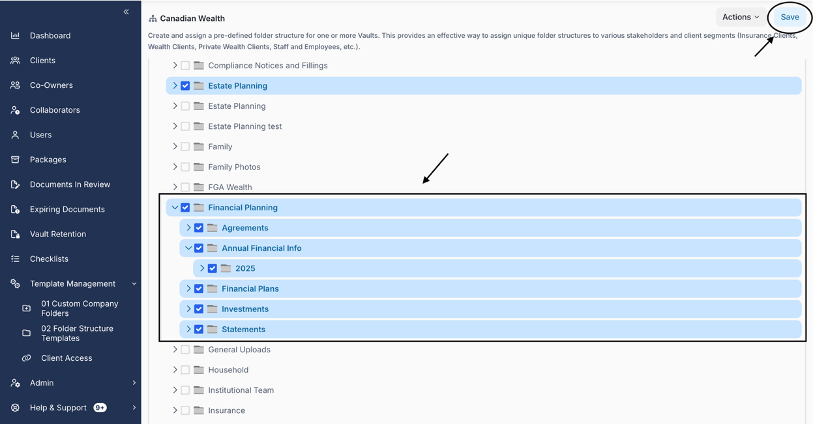
- Click on the newly created Template and select the folders that should be part of this Taxonomy.
- Once selected, click 'Save' and you are all set!